Automated WhatsApp Messages: Greeting & Auto-Reply Examples for Business
12 min read
On this page
- What is an automated message on WhatsApp Business?
- How to set up automated messages in WhatsApp Business
- WhatsApp Business greeting message examples (8)
- WhatsApp away message examples (8)
- Quick reply and order message samples (10)
- Quick replies to save in the app
- Order and booking messages (API templates)
- The Saudi timing calendar most template lists ignore
- When templates are not enough
- Frequently asked questions
- What is the difference between a greeting message and an away message?
- How do I set up an automated message on WhatsApp Business?
- Can I send automated messages from a personal WhatsApp account?
- Why is my WhatsApp away message not working?
- Are WhatsApp automated messages free?
- Turn your automated messages into real answers
Your shop closes at 10 pm. But according to Saudi Arabia's own Saudi Internet 2025 report from the Communications, Space and Technology Commission, online activity in the Kingdom peaks between 9 pm and 11 pm, and Friday is the busiest day of the week. That is exactly when most customer messages land, and exactly when nobody is there to answer them.
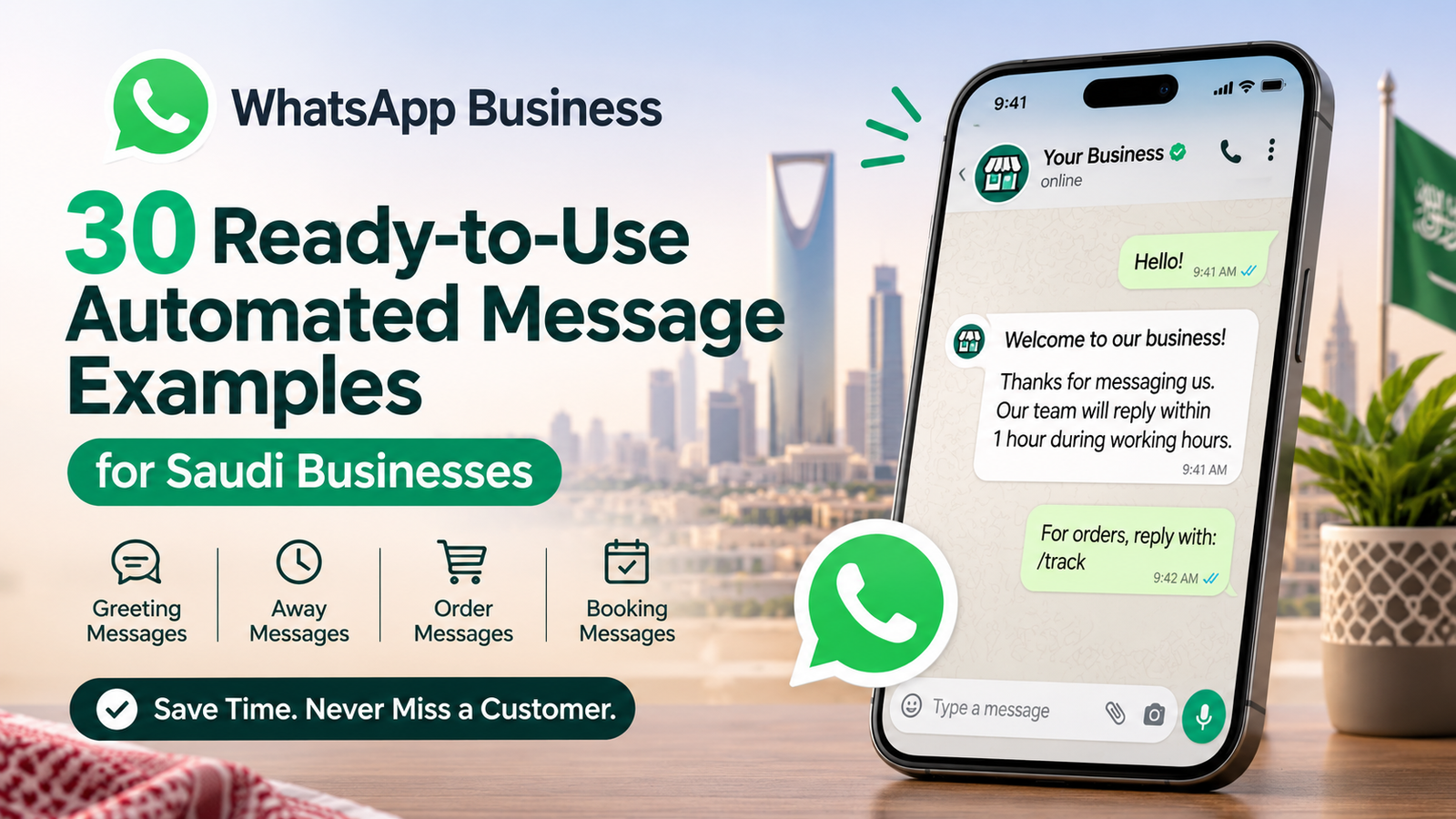
A good automated message fixes the first problem in about ten minutes. It tells the customer you got their message, when you'll reply, and what they can do right now. This guide gives you 30 copy-ready WhatsApp examples (greeting, away, order and booking messages), written for how Saudi businesses actually work: Friday weekends, Ramadan hours, Eid closures and bilingual customers.
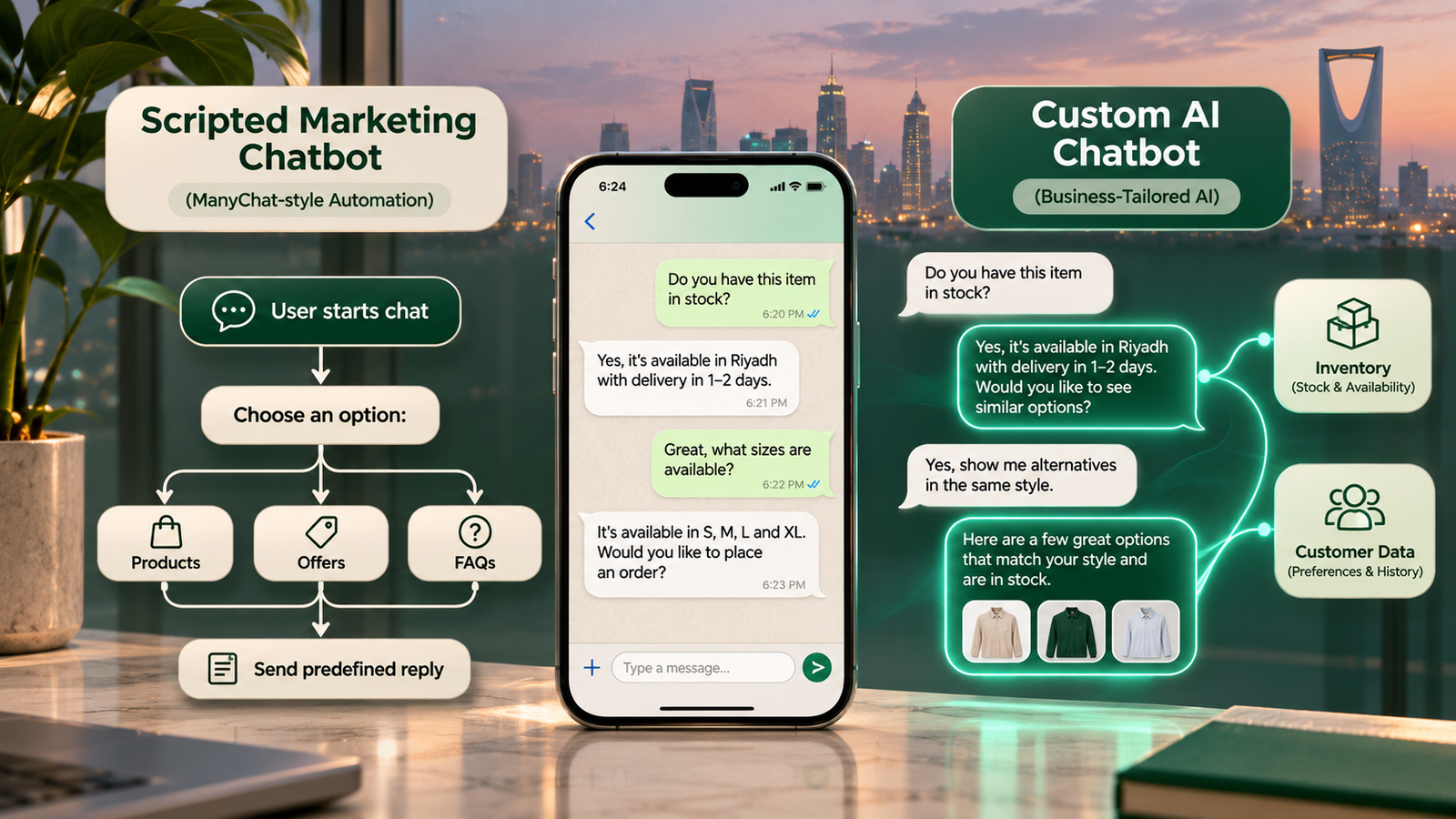
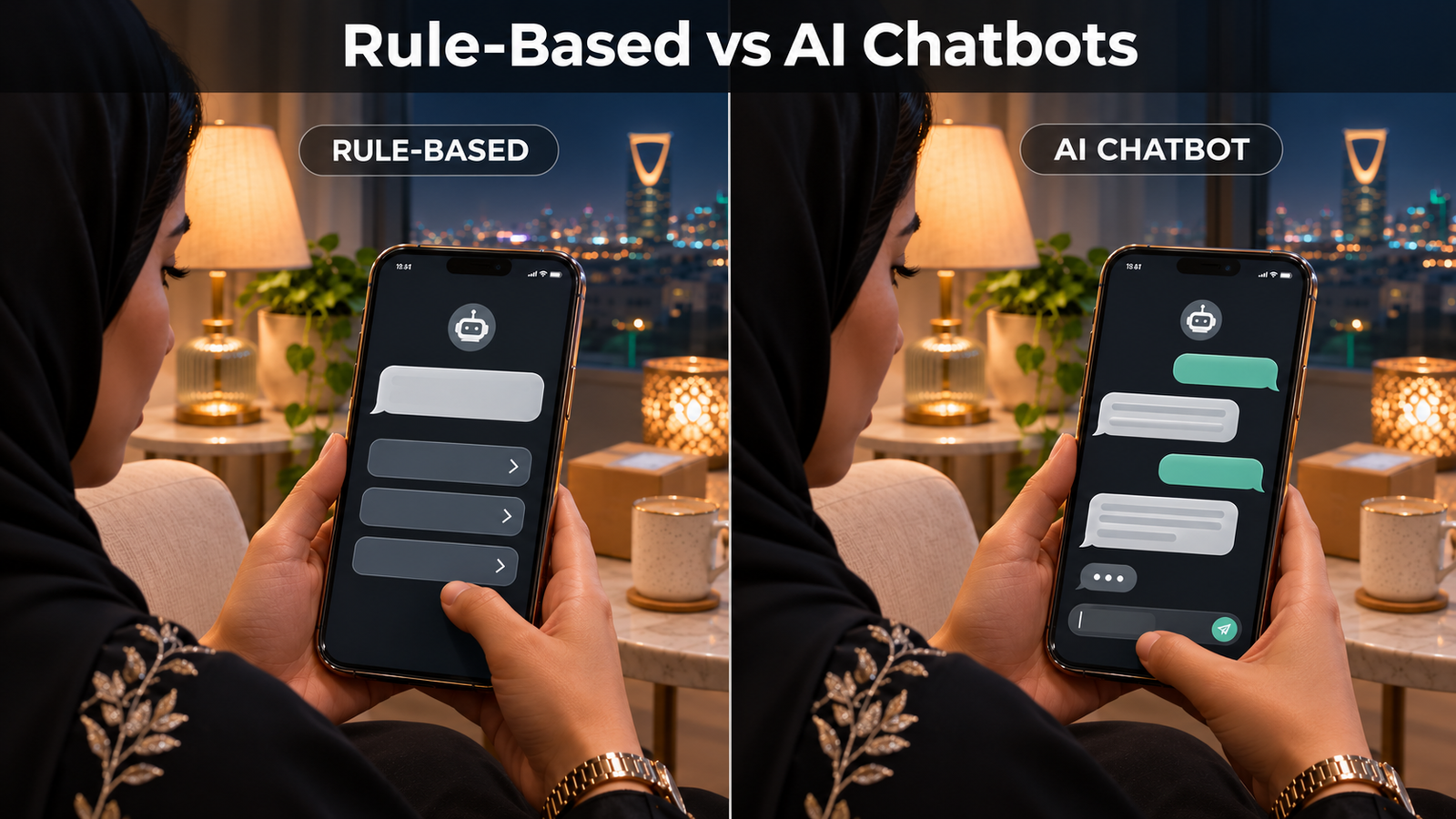
We'll also be honest about where templates stop working. If you're still deciding between simple auto-replies and a full bot, start with our guide to AI chatbots for business, then come back here for the wording.
What is an automated message on WhatsApp Business?
An automated message on WhatsApp Business is a reply the app sends for you, without anyone typing it. The free WhatsApp Business app has three built-in tools: a greeting message for new contacts, an away message for closed hours, and quick replies, which are saved answers your team sends with a shortcut.
The three get mixed up a lot, so here's the short version:
|
Tool |
When it fires |
Best for |
Fully automatic? |
|---|---|---|---|
|
Greeting message |
A customer's first message, or their first message after 14 days of no chat |
Welcome + next step |
Yes |
|
Away message |
Outside the schedule you set (after hours, weekends, holidays) |
Reply time + what to do now |
Yes |
|
Quick replies |
Your agent types "/" plus a shortcut, like /location |
Repeat answers: prices, branches, payment |
No, a person sends it |
The 14-day rule comes from WhatsApp's own help page on greeting messages. One thing none of these tools does: read the customer's question. A greeting message sends the same text whether someone asks for a price or files a complaint. Keep that in mind; it matters later.
How to set up automated messages in WhatsApp Business
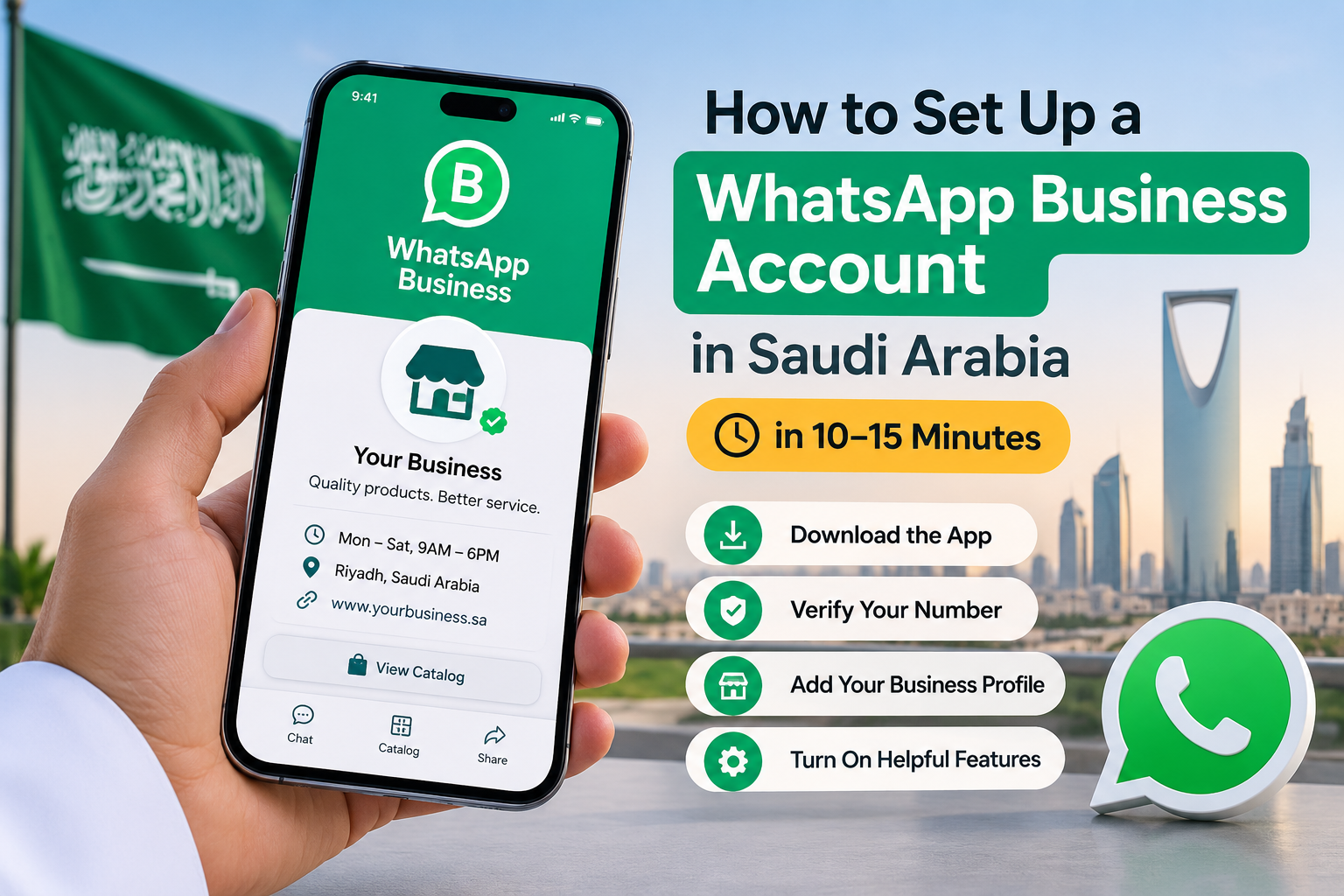
You set up automated messages from the Business tools menu in the WhatsApp Business app. Open the app, tap the three dots (Android) or Settings (iPhone), choose Business tools, then switch on Greeting message, Away message and Quick replies one by one. The whole setup takes about ten minutes.
- Set your business hours first. Go to your business profile and add your real opening hours. The away message's "outside of business hours" option depends on them.
- Turn on the greeting message. Business tools > Greeting message > toggle on. Write the text and pick recipients: everyone, people not in your address book, or a custom list.
- Turn on the away message. Business tools > Away message > toggle on. Choose a schedule: always send, a custom schedule, or outside of business hours.
- Save quick replies. Business tools > Quick replies > add (+). Write the message and give it a short shortcut, like /price or /branches. In any chat, type "/" to pull it up.
- Test from a second phone. Message your business number from a personal phone, once during working hours and once after closing. Never trust a setting you haven't received yourself.
Two setup mistakes we see all the time in Saudi shops: business hours left on the default schedule (so the away message fires on a Sunday morning), and Friday missing from the closed days. Your phone also needs an internet connection for greeting and away messages to send. If the business phone sits switched off in a drawer over the weekend, nothing goes out.
WhatsApp Business greeting message examples (8)
The best WhatsApp Business greeting message is short, names your business in the first line, and gives the customer one clear next step. Keep it to two to four lines, because the chat preview only shows the start of the message.
Replace the [brackets] with your details.
1. General business
Welcome to [Business Name]! Thanks for messaging us. Tell us what you need and our team will reply within [X] minutes during working hours.
2. Bilingual (Arabic first, then English)
أهلاً بك في [اسم النشاط]! كيف نقدر نخدمك؟ Welcome to [Business Name]! How can we help? Reply in Arabic or English.
3. Retail or e-commerce store
Hi! Welcome to [Store Name]. Looking for a product, checking an order, or asking about returns? Send us the product name or your order number to start.
4. Restaurant or café
Welcome to [Restaurant]! For delivery, order on [app/link]. For table bookings, send the date, time and number of guests.
5. Clinic
Welcome to [Clinic Name]. To book, send the patient's name, preferred doctor and day. For emergencies, please call 997 or go to the nearest emergency department.
6. B2B or trading company
Thank you for contacting [Company]. To send you a quotation quickly, please share the item, quantity and delivery city ([Riyadh / Dammam / Jeddah]).
7. Real estate
Welcome to [Agency]. Tell us the area, budget and whether you want to rent or buy, and an agent will send matching listings.
8. Returning customer (after 14 days)
Welcome back to [Business Name]! If this is about a previous order, send the order number and we'll pick it up from there.
Notice the pattern: every greeting asks for the one detail your team needs to answer. That turns "Hi" into a useful first message and saves a round of back-and-forth.
WhatsApp away message examples (8)
A good WhatsApp away message does three things: confirms the message arrived, says exactly when you'll reply, and offers something the customer can do right now. "We're closed" alone fails all three.
9. After hours (weekday)
Thanks for your message! We're closed now and open again at [9:00 am]. We'll reply first thing. Meanwhile, you can browse our catalog here: [link].
10. Friday closure
Jumu'ah Mubarak! Our team is off on Fridays. We're back Saturday at [time] and will answer in the order messages came in.
11. Late night with a self-service option
We're offline until [time] tomorrow. To track an order now, use [tracking link]. For anything else, leave your question and order number here.
12. Ramadan hours
Ramadan Kareem! During Ramadan we're open [10:00 am to 4:00 pm] and [9:00 pm to 1:00 am]. We'll reply as soon as we're back.
13. Eid holiday
Eid Mubarak from all of us at [Business Name]! We're closed from [date] to [date] and back on [date]. Orders placed now ship after the holiday.
14. National Day or Founding Day
Happy National Day! Our office is closed on [date]. Online orders are still open, and our team replies from [date].
15. High volume (busy hours or sale days)
We're getting a lot of messages right now, so replies may take up to [X hours]. Your place in the queue is saved; there's no need to send again.
16. B2B after hours, with an urgent route
Our sales team is available Sunday to Thursday, [8:00 am to 5:00 pm]. For urgent delivery issues, email [address] and our duty team will respond.
Ramadan and Eid dates move every year with the Hijri calendar, and the official Ramadan working hours are announced shortly before the month starts. Schedule example 12 as a custom away message only once your actual hours are fixed.
Quick reply and order message samples (10)
Quick replies cover the questions your team answers 20 times a day; order and booking messages keep customers updated after they buy. Save the first group as quick replies in the app. The second group works best as approved message templates on the WhatsApp Business API, because they often go out after the 24-hour chat window has closed.
Quick replies to save in the app
|
# |
Shortcut |
Automated message sample |
|---|---|---|
|
17 |
/branches |
We have branches in [Riyadh, Jeddah and Al Khobar]. Here are the locations: [map links]. |
|
18 |
/payment |
We accept mada, Visa, Mastercard, Apple Pay and bank transfer. Cash on delivery is available in [cities]. |
|
19 |
/delivery |
Delivery takes [1 to 2] working days in [city] and [3 to 5] days to other cities. Delivery fee: [SAR X]. |
|
20 |
/quote |
To prepare your quotation, please send the item, quantity, and delivery location. We reply within [X hours]. |
|
21 |
/human |
Thanks for your patience. I'm passing this chat to [Name] from our team, who will reply shortly. |
|
22 |
/thanks |
Thank you for choosing [Business Name]! If anything else comes up, message us here anytime. |
Order and booking messages (API templates)
23. Order confirmation
Hi [Name], your order #[number] is confirmed. Total: SAR [amount]. We'll message you when it ships.
24. Shipping update
Good news, [Name]! Order #[number] is on its way with [courier]. Track it here: [link].
25. Appointment reminder
Reminder: your appointment at [Clinic/Salon] is on [day, date] at [time]. Reply 1 to confirm or 2 to reschedule.
26. Payment reminder (B2B)
Dear [Name], invoice #[number] for SAR [amount] is due on [date]. Reply here if you need a copy or a statement.
Messages 23 to 26 only work well if the order number, amount and status come from your real system. Typing them by hand defeats the point. When order data already sits in an ERP system, the confirmation and shipping messages can fire straight from it.
The Saudi timing calendar most template lists ignore
Most template lists are written for a Monday-to-Friday, 9-to-5 business. In Saudi Arabia, the weekly rest day is Friday, Ramadan cuts private-sector hours to a maximum of six a day for Muslim employees under the Labour Law, and customers are most active late at night. Your automated messages need to follow that calendar, not a generic one.
Here's when to switch which message:
|
When |
What happens |
Message to switch on |
|---|---|---|
|
Every night, 9 pm to 11 pm |
Peak online time in the Kingdom |
Late-night away message with a self-service link (#11) |
|
Every Friday |
Official weekly rest day |
Friday closure message (#10) |
|
Ramadan |
Shorter, split working hours; busy evenings after iftar |
Ramadan hours message (#12) |
|
Eid al-Fitr and Eid al-Adha |
Multi-day closures |
Eid holiday message (#13), plus an order cut-off notice before |
|
Founding Day (22 February), National Day (23 September) |
Public holidays |
National Day message (#14) |
|
Big sale days (White Friday, 11.11) |
Message volume spikes |
High-volume message (#15) |
And four more samples built for those moments:
27. Order cut-off before Eid
Planning gifts for Eid? Orders placed before [date, time] arrive before the holiday. After that, delivery resumes on [date].
28. Back to normal hours after Ramadan
We're back to our regular hours: [Sunday to Thursday, 9 am to 10 pm]. Thanks for your patience during Ramadan!
29. Reply to a late-night message (sent by a person next morning)
Good morning [Name], thanks for your message last night. Here's the answer: [answer]. Anything else we can help with?
30. Saturday short hours
On Saturdays we're open [1 pm to 6 pm]. Leave your message and we'll reply today before closing.
The Ramadan six-hour rule applies to Muslim employees, and many companies set their own split shifts on top of it, so always check your actual roster before you schedule the Ramadan message.
When templates are not enough
Automated messages stop being enough when customers need a real answer, not an acknowledgment. If your team gets more than a few dozen WhatsApp chats a day, if the same questions keep arriving at night, or if answers depend on live data like order status or stock, a fixed greeting can't keep up.
Here's how the three options compare:
|
WhatsApp Business app |
WhatsApp Business API + templates |
AI chatbot on WhatsApp |
|
|---|---|---|---|
|
Reads the customer's question |
No |
No (sends what you trigger) |
Yes |
|
Replies at 11 pm with a real answer |
No, only an away note |
Only for events you've set up |
Yes |
|
Order and booking updates |
Manual |
Yes, from your system |
Yes, and answers follow-ups |
|
Multiple agents on one number |
Limited |
Yes, through a platform |
Yes, with human handoff |
|
Cost |
Free app |
Meta per-message fees + platform |
Build or subscription + Meta fees |
Two API rules matter here. First, once 24 hours pass since the customer's last message, the API only lets you send pre-approved templates (marketing, utility or authentication), as Meta's pricing documentation explains. Second, Meta's billing for messages sent inside that 24-hour window changed in October 2026, according to several Meta business partners, so check the current rate card for Saudi Arabia before you estimate costs.
The real upgrade, though, is the bot reading the question. A customer who writes "where is my order 4471" at midnight gets the actual status, not "we're closed". That's what WhatsApp chatbot development adds on top of the templates above: answers pulled from your systems, in Arabic or English, with a handoff to your team for anything the bot shouldn't handle. If your customers write in Saudi dialect, an Arabic AI chatbot that understands how Saudis actually type is worth the extra testing.
Frequently asked questions
What is the difference between a greeting message and an away message?
A greeting message welcomes a customer on their first message or after 14 days of no chat, while an away message replies when your business is closed. Most businesses need both turned on.
How do I set up an automated message on WhatsApp Business?
Open the WhatsApp Business app, go to Business tools, and turn on Greeting message or Away message. Write your text, choose recipients and a schedule, then test it from a second phone.
Can I send automated messages from a personal WhatsApp account?
Greeting messages, away messages and quick replies are built into the WhatsApp Business app, not regular WhatsApp. You can move your number to the free Business app to use them.
Why is my WhatsApp away message not working?
The most common causes are business hours that don't match the schedule, the wrong recipient setting, or the business phone being offline. The app needs an internet connection to send automated messages.
Are WhatsApp automated messages free?
Greeting messages, away messages and quick replies in the WhatsApp Business app are free. On the WhatsApp Business API, Meta charges per message by template category and country, so check the current rate card.
Turn your automated messages into real answers
Start with the 30 messages above. Switch on a greeting, schedule your Friday and late-night away messages, and save the quick replies your team types most. That alone stops customers from feeling ignored.
When the night-time questions start piling up, the next step is a WhatsApp chatbot for business that answers them. At Intellitech Solutions, we build chatbots around your real customer conversations and connect them to the systems that hold your answers. See how we set up AI replies on WhatsApp, or talk to our chatbot team about your use case.